1.) From the main dashboard, click on 'Settings', as seen below: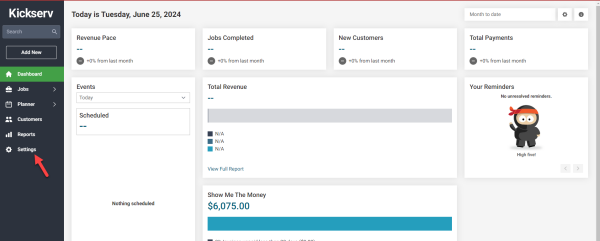
2.) Once in Settings, navigate to 'items' on the right side, under the 'Customizations' header: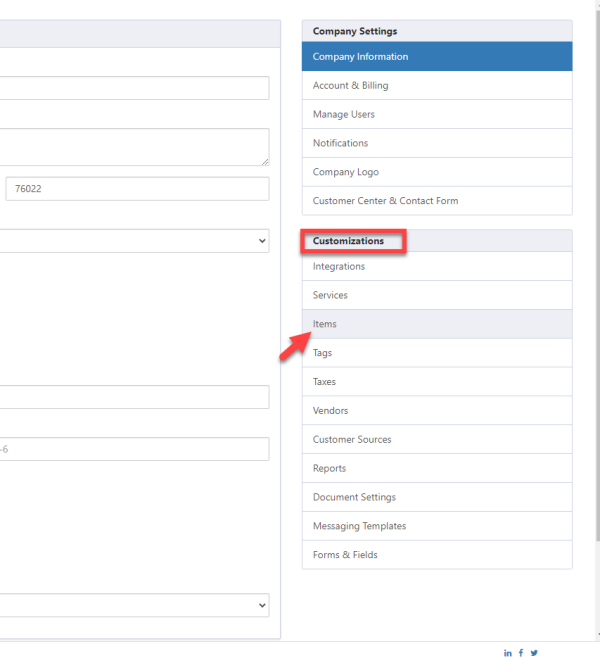
3.) Once in the Active items list, you will see a list that includes all of the active items, presented in a table, with columns to indicate various attributes about each item. You can choose to edit the item with the pencil action icon on the right side of each row. In order to remove tax from the item, simply click to edit the item: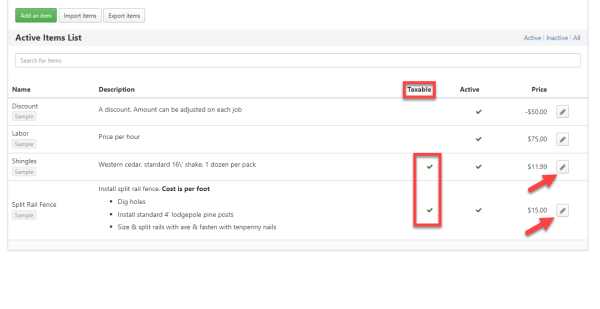
4.) The next screen that you travel to when clicking on the edit icon brings you to the specific item selected to be edited. Here, you will see various attributes of the item, including:
Name
Description
Price
Taxable
Active
5.) To remove the tax from this item, simply uncheck the 'Taxable' option by clicking the checkmark box adjacent to the item name. Once this has been performed, do not forget to select 'Update Item' in the lower left corner of this screen.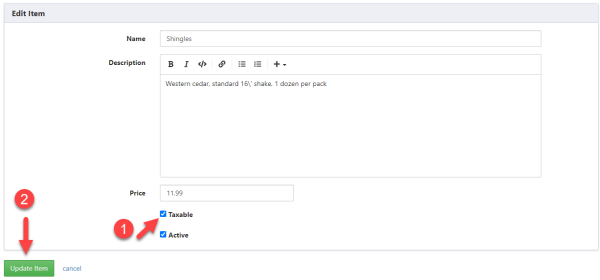
This sequence of events can be repeated for any item that currently has tax associated with it that you would wish to remove.
Also, making changes to to the tax status of an item does not retroactively update the tax on past jobs. The user will need to update the charges on the job the for the new tax status to go into effect.